
Single Touch Payroll - Setup and Activation
Getting Started
Before activating STP there are steps to be taken to ensure all the details are set up correctly and according to ATO requirements.
Once Pay Items have been set up and employees are in your database, there are readiness checks to perform before processing your first payrun
To start the process of activating STP in your Ready Pay Readiness Checks need to be performed.
STP Readiness Checks.
Pay Items
In the Navigator > Company Definitions > Maintain Company, click on the STP Tab, click on STP2 Readiness Checks. 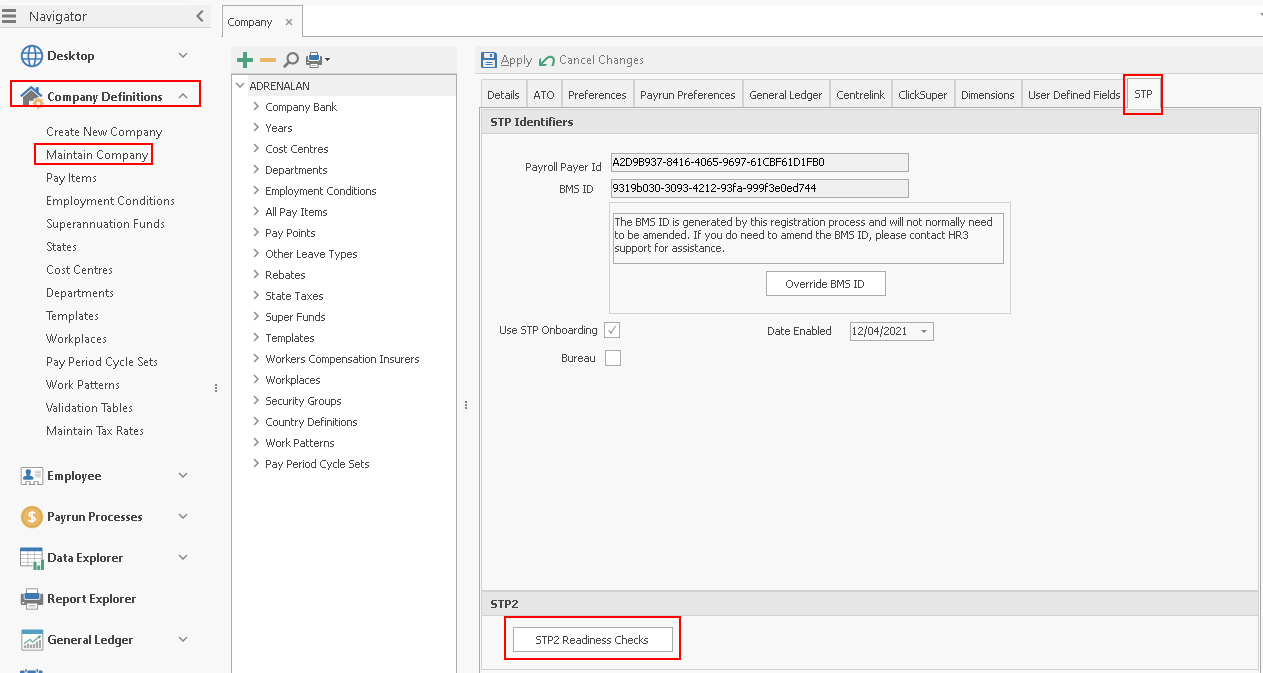
Click on Execute against Pay Items.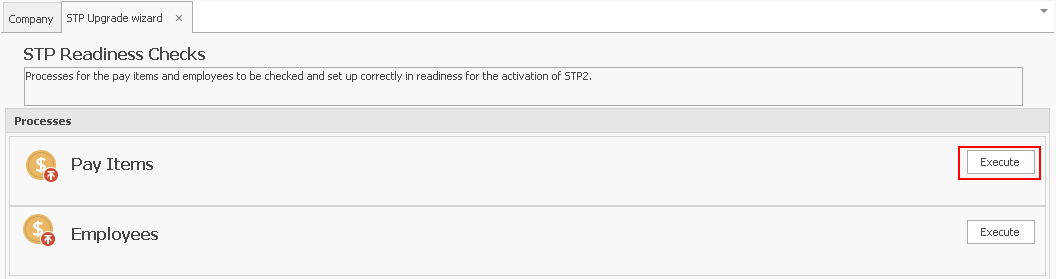
In the pay items grid that appears, review all four types of pay items (payment pay items, leave accrual pay items, leave non accrual pay items and deduction pay items) to make sure that they are correctly configured in terms of the following fields:
- STP2 Income Type - Check if the payment pay items, leave accrual pay items and leave non-accrual pay items have the correct STP2 Income Type.
-
STP Allowance Type - Check if the STP2 Income Type = Allowance, then that the STP Allowance Type is not blank.
It is also recommended to check that the pay items that have a value in STP Allowance Type, have the correct value as the options. -
If you see Transport as the STP Allowance Type in the grid, change it to the appropriate type.
-
STP2 Leave Type - Check that the leave pay items have the correct STP2 Leave Type selected.
-
Child Support Deduction - Check that the Child support deduction pay item has this option ticked.
-
Child Support Garnishee - Check that the Child support garnishee deduction pay item has this option ticked.

You can double click on a pay item in the grid to go to that pay item, review, or change the values and then save it
Employees and Activating STP
Click on Execute against Employees, in STP2 Readiness Checks. 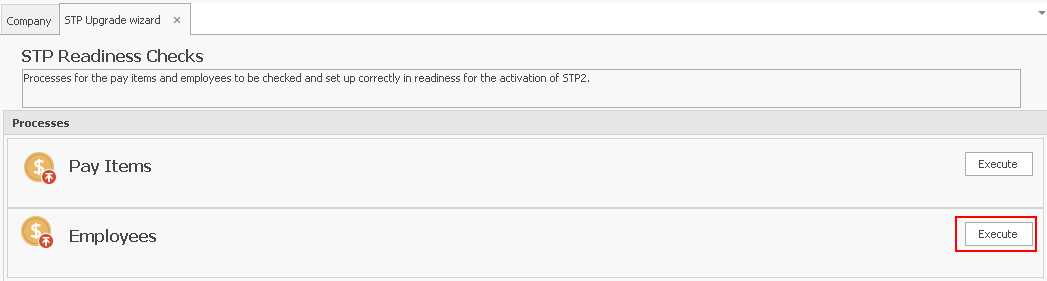
When the grid appears press the Apply Codes button, then check that no employees have a redstatus.

If you see any employees with the red status, you should check their tax details and update them accordingly.
You can double click on any employee in the grid to open the employee details window.
Navigate to the Tax tab to review/update the tax details of the employee.
It is recommended to revisit the taxation details of all your employees and check that the appropriate Income Stream Type Code and Tax Treatment Code applies to them before you activate STP2 and start reporting to the ATO.
Click Next and click on Activate STP2

The STP2 Activation and Declaration window will pop up, please read and Accept the declaration.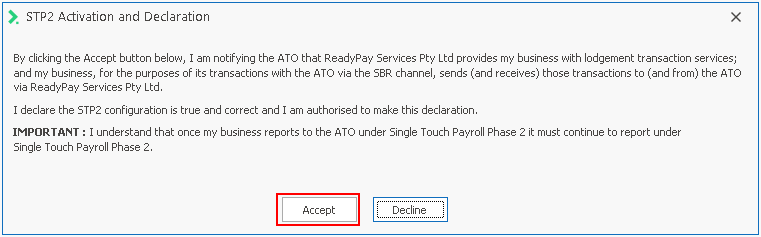
A confirmation that STP V2 is activated will pop up, click OK.

Registering Companies for STP
To register all companies for STP go to Ribbon Bar > Tools and Settings > Settings.
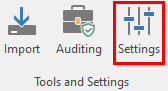
On the following screen click on the STP node.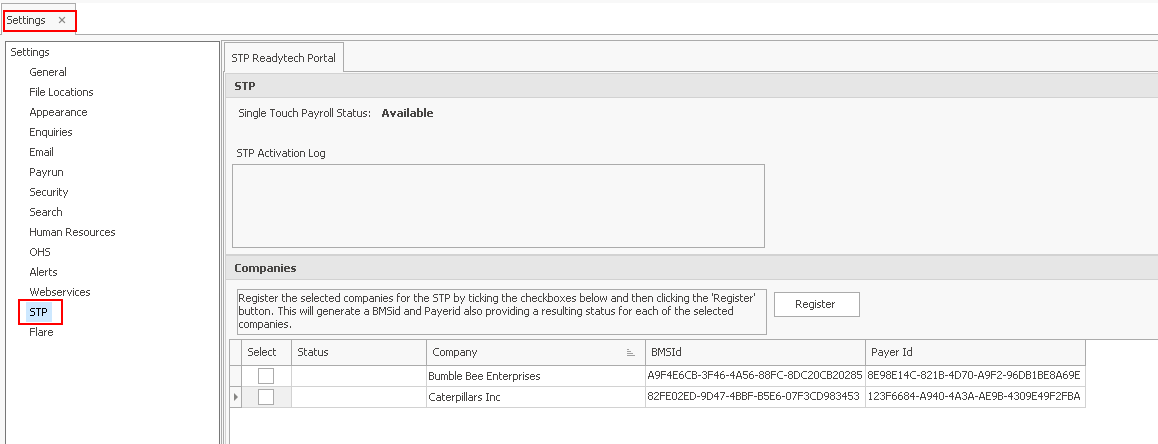
If it is currently Un Available follow the steps at Employees and Activating STP above.

This will register the selected companies that are required for STP processing.
Once the database has been activated for STP, and all the companies that you will be processing under STP are registered, this process generates the two ID’s that are required for STP processing.
If you have already completed this process then the current BMS ID’s and Payroll Payer ID’s will be shown.
- BMS ID – Stands for Business Management System ID and the ATO uses this ID to uniquely identify each ABN entity and the payroll system (ie the BMS) that is being used.
- Payer ID – this is used to identify the ABN entity within the ReadyTech portal.
Overriding a BMS ID
There are certain circumstances where it may be necessary to override the BMS ID that Ready Pay generates with another BMS ID.
One such example is where a company transitions from one STP enabled payroll system (1st BMS ID) to another STP enabled payroll system (2nd BMS ID), part way through a financial year.
If the company has already lodged STP PayEvents using the 1st BMS ID and wishes to load YTD balances into the new payroll system, then they cannot use a different BMS ID or the YTD values will be reported twice.
The scenarios around transitioning between STP enabled payroll systems are quite complex and therefore you will need to contact the Ready Pay support team for advice on your options.
To avoid the possibility of incorrectly overriding a BMS ID, this process requires an unlock key to be entered which only the support team can provide.
To override the BMS ID;
- Go to Navigator > Company Definitions > Maintain Company > STP. The following screen is displayed.
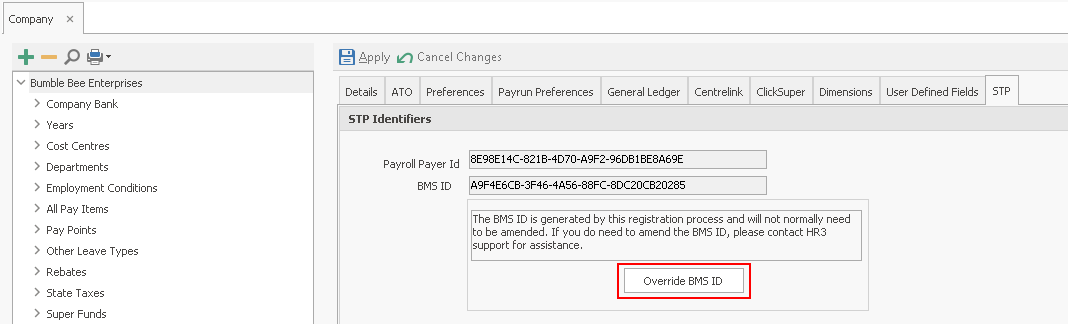
- Click on Override BMS ID. If you have contacted the Ready Pay support desk and they have confirmed that a BMS ID override is warranted, then you will be given the required Day Pass code.
- The BMS ID field will activated and you will be able to enter the BMS ID that you require.
Entering Bureau provider details
If you use Ready Pay to provide payroll processing services on behalf of the listed companies, there are additional details that you will need to complete.
In terms of STP, the ATO deems you to be an Intermediary acting on behalf of your client companies.
- To enter your bureau details go to Navigator > Company Definitions > Maintain Company > STP, the following screen is displayed.
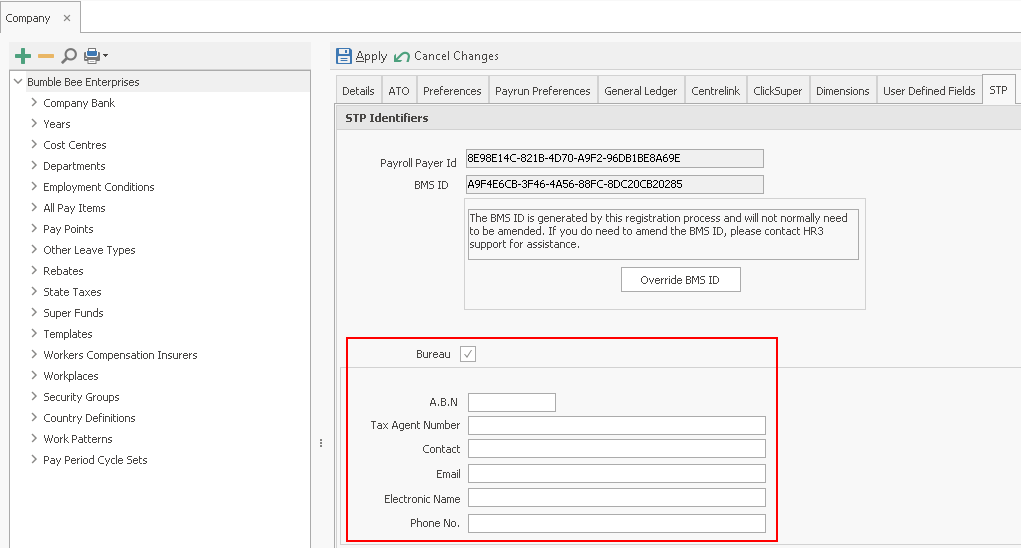
- Tick the Bureau checkbox and the extra Bureau fields will be displayed.
- Enter the bureau provider ABN.
- Enter the bureau provider’s Tax Agent Number.
- Enter the Contact name.
- Enter the contact’s Email address.
- You can skip Electronic Name.
- Enter the contact’s Phone No. and click Apply to save your changes for this company.
Note: If you have a large number of companies that you need to enter the same bureau details for, please contact the Ready Pay support staff as they can assist you to update the bureau details in bulk rather than doing them one company at a time.
STP2 Types
Pay Items
There are 3 STP2 types that need to be selected against any payments made to employees, in order to report correctly to the ATO.
These include Payment Pay Items, Leave Accrual Pay Items and Leave Non Accrual Pay items.
Based on the STP2 Income Type selected will determine whether you need to enter an STP2 Leave Type or STP Allowance Type.
STP2 Income Type - Gross does not require any other STP type selected: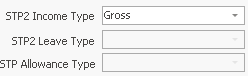
STP2 Income Type - Paid Leave requires the selection of an STP2 Leave Type: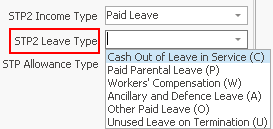
STP2 Income Type - Allowance requires the selection of an STP Allowance Type: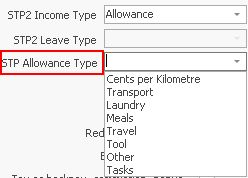
The following STP2 Income Types do not require any other STP type selected :
- Overtime
- Binuses and Commissions
- Directors Fees
If there are pay items that do not need to be reported to the ATO, for example a Living Away from Home allowance, select STP2 Income Type - Not Reported.
Important: Only deductible allowances need to be categorised.
These are typically allowances that an employee can claim separately in their tax returns.
Ready Pay support staff cannot assist you in determining if an allowance is deductible.
See the ATO’s website for further details on deductible allowances.
stp-phase-2-reporting-quick-reference-guide
Deductions
STP has specific rules relating to the reporting of Union and Professional Association fees, Workplace Giving, Child Support Deduction and Child Support Garnishee.
If you have any existing deductions for either Union/ Professional Assoc or Workplace Giving then these will already be allocated correctly.
if you have existing deductions for either Child Support Deductionor Child Support Garishee these may not be allocated correctly and you will need to allocate these manually
- To check if you have the appropriate checkbox options selected or to manually allocate a new deduction;
Go to the All Pay Items > Deduction Pay Items screen and tick the relevant checkbox options as below:


Note: STP will be set up and activated as part of your Implementation.
Perform this process if you have new companies to set up in Ready Pay to ensue STP readiness.